
192.168.1.30 router login and password for your device at 192.168.1.30 We will help you get into your router or other devices on your network 192.168.1.30 is a private ip address used for local networks. Intel Network Adapter Driver for Windows 7 installs base drivers, Intel PROSet for Windows Device Manager, advanced networking services for teaming and VLANs (ANS), and SNMP for Intel Network Adapters. This download is valid for the product(s) listed below. IMPORTANT NOTICE: Downloading the latest Driver releases helps resolve Driver conflicts and improve your computer’s stability and performance.Updates are recommended for all Windows 10, Windows 8, Windows 7, XP and Vista users. 192.168.1.1 Router Configuration Center 192.168.1.1 Admin Login 192.168.1.1 router admin passwords and login ip192.168.1.1 is an IP address which routers like Linksys and other network brands use as an access point or gateway. Firms set up router admin access in this address to allow network administrators to configure their routers and networks.
Last week I was asked if I knew how to enable SSH access on a Sphairon (ZyXEL) Speedlink 5501. My previous technique for the HomeBox 3232 (also manufactured by Sphairon) did not work as the expected magic bytes in the configuration backup file of the Speedlink 5501 could not be found. So I had to reverse this new file format to see, if a similar technique can be applied here.
In this post I will explain the details of this new file format. With this knowledge we can unpack, modify and repack config files. Secondly, I will show you what config options have to be modified, in order to enable SSH access. Unfortunately, I have no time to write a ready-to-use tool this time. But anyone is invited to use these results to code their own unpacker. Please let me know, if you publish something so I can link to it from here.
Reversing the config file format
I downloaded the Firmware V4.37.2.4.4 from Deutsche Telekom. Using binwalk two lzma-compressed SquashFS file systems were easily spotted.
These filesystems were unpacked using the squashfs-tools from SquashFS 4.3 on a Debian system running 3.2.60 kernel (read here why this is important).
After browsing the first filesystem (named rootfs) it turned out, that it most likely contained no code related to the config file handling. So I started to investigate the second filesystem (named servfs) and quickly found a library called libconfig-export-api.so which sounded interesting to me.
By reverse engineering a part of the library’s code, the config file structure of the Speedlink 5501 could be reconstructed. It uses a 72 byte header followed by a gzipped tar archive (.tgz) of arbitary length.
The header contains two SHA-1 hashes. The first hash, tgz_sha1, is computed over the .tgz archive in which the actual configuration is stored. The second hash, header_sha1, is computed over the first 40 bytes of the header (i. e. up to header_sha1). Therefore, tgz_sha1 must be computed first, when assembling the header.
Enabling SSH access
After you have unpacked the .tgz file, you will have several subdirectories of which one is named sql. Inside you will find several .sql files. Open sql/persistent-network.db.sql with a text editor.
First we will modify the firewall to allow access on port 22. Search for “FirewallRulesStatic” and you will see the existing firewall rules (in my case 9 rules, IDs 0..8).
Simply append a 10th rule (with the ID 9) like this:
If you are curious for the syntax, you can scroll up a bit where the table FirewallRulesStatic is created. Most options should be self-explanatory.
Secondly, we will enable the SSH daemon. Search for the line
and change it to
Finally, we enable the existing SSH account. Search for
and change it to
It is advisable to change the username and password as well.
After you have made all your changes, save the .sql file and repack everything back to a .tgz file. Next, compute both SHA-1 hashes and modify the header accordingly. After the config file is uploaded to the router, it will reboot and start a SSH daemon for you.
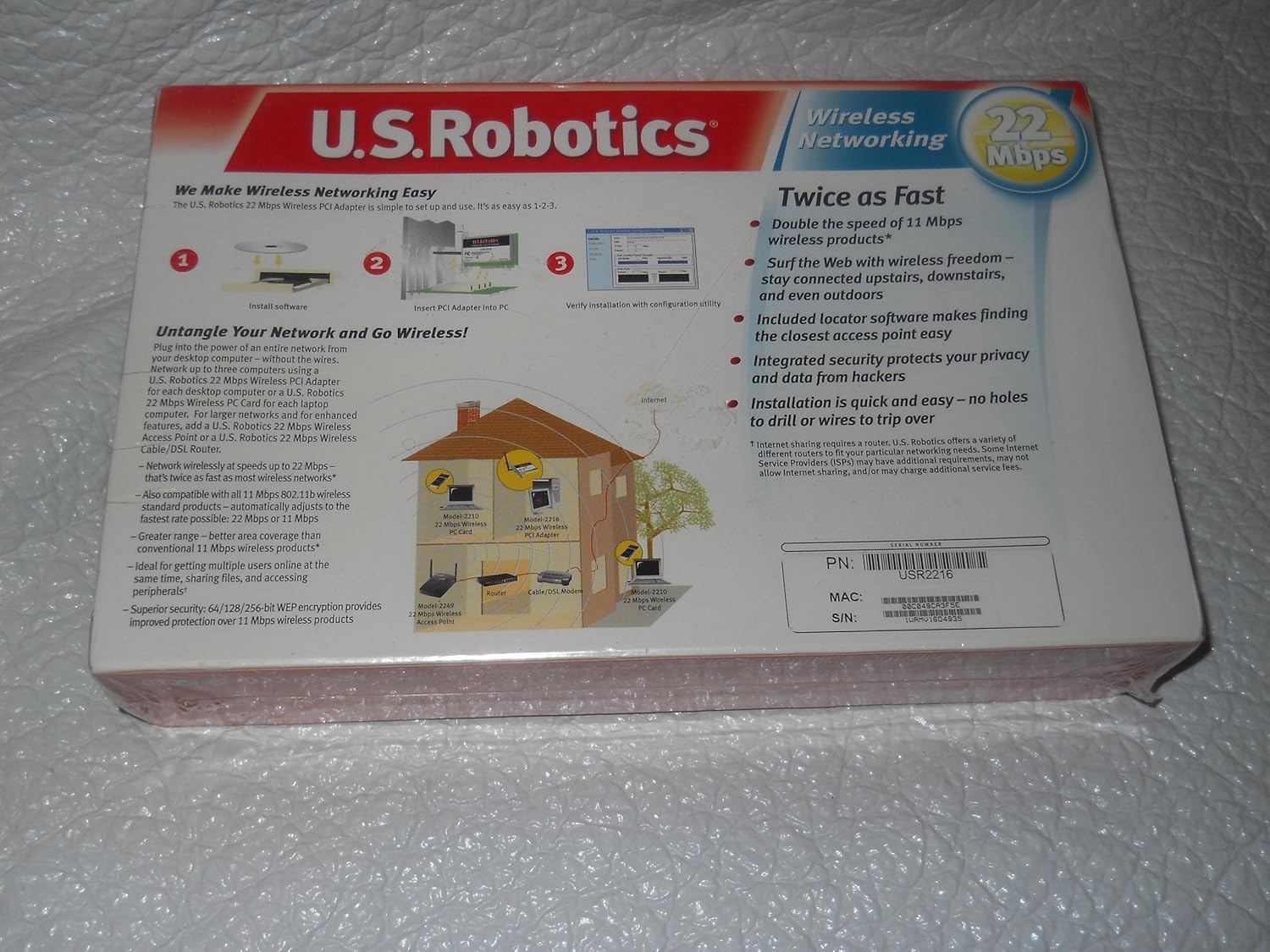
Here's how you can update your wireless (WiFi) driver on your PC running Windows 7, 8, 8.1 and 10:
- Determine the wireless driver that you're running on your PC, along with the date and version. Open the command prompt (Win key + R, type 'cmd') and enter the following command:
Sphairon Access Network & Wireless Cards Driver Download For Windows 8
You should get a screen like the one below:
- If the driver is more than one year old, we suggest you update it. Copy the driver name from the command prompt screen and do a Google search.
- Download the latest available driver for your wireless (WiFi) adapter from the manufacturer's website. In the example above, go to the Download Center for Intel and choose the driver for the Windows version you are running. If you're unsure of what version you're running, just check the 'System type' information in the System properties screen (Win key + Break). (We suggest downloading the file to your Desktop).
- Install the driver by running the installer. If the driver doesn't have an installer:
- Open the Device Manager (You can do this by pressing the Windows but and typing it out)
- Right click on your wireless adapter and choose Update Driver Software.
- Choose the option to Browse and locate the drivers you downloaded. Windows will then install the drivers.
- Open the Device Manager (You can do this by pressing the Windows but and typing it out)
- Reboot your PC after installing the updated drivers.
Sphairon Access Network & Wireless Cards Driver Download For Windows 7
Notes
Here are the driver update websites for some frequently used wireless (WiFi) cards:
Sphairon Access Network & Wireless Cards Driver Download For Windows Xp
- Intel: https://downloadcenter.intel.com/product/59485/Wireless-Networking
- Qualcomm / Atheros: https://www.ath-drivers.eu/atheros-wireless-drivers.html